Shopify Export to Profit Dashboard in 30 Seconds (Step-by-Step Tutorial)
Complete step-by-step guide with screenshots to get your first Okiela profit analysis. From CSV download to actionable insights in under a minute.
Nguyen Tuan Dai
Founder & CEO, Okiela
Key Takeaways
- 1Complete process takes 30 seconds from CSV to insights
- 2Export "Sales over time" report from Shopify for best results
- 3The 5D Pipeline processes data in 15-30 seconds automatically
- 4AI Chat gives specific, data-backed recommendations with dollar amounts
- 5Works with Shopify, Shopee, TikTok Shop, WooCommerce, and any CSV
Table of Contents (8 sections)
Getting your first profit analysis with Okiela takes just 30 seconds. This tutorial walks you through every step with clear instructions.
Prerequisites
Before you start, you need:
- A Shopify store with at least 1 month of sales data
- Access to your Shopify admin panel
- A free Okiela account (sign up at okiela.io)
No technical skills required. If you can download a file and upload it, you can do this.
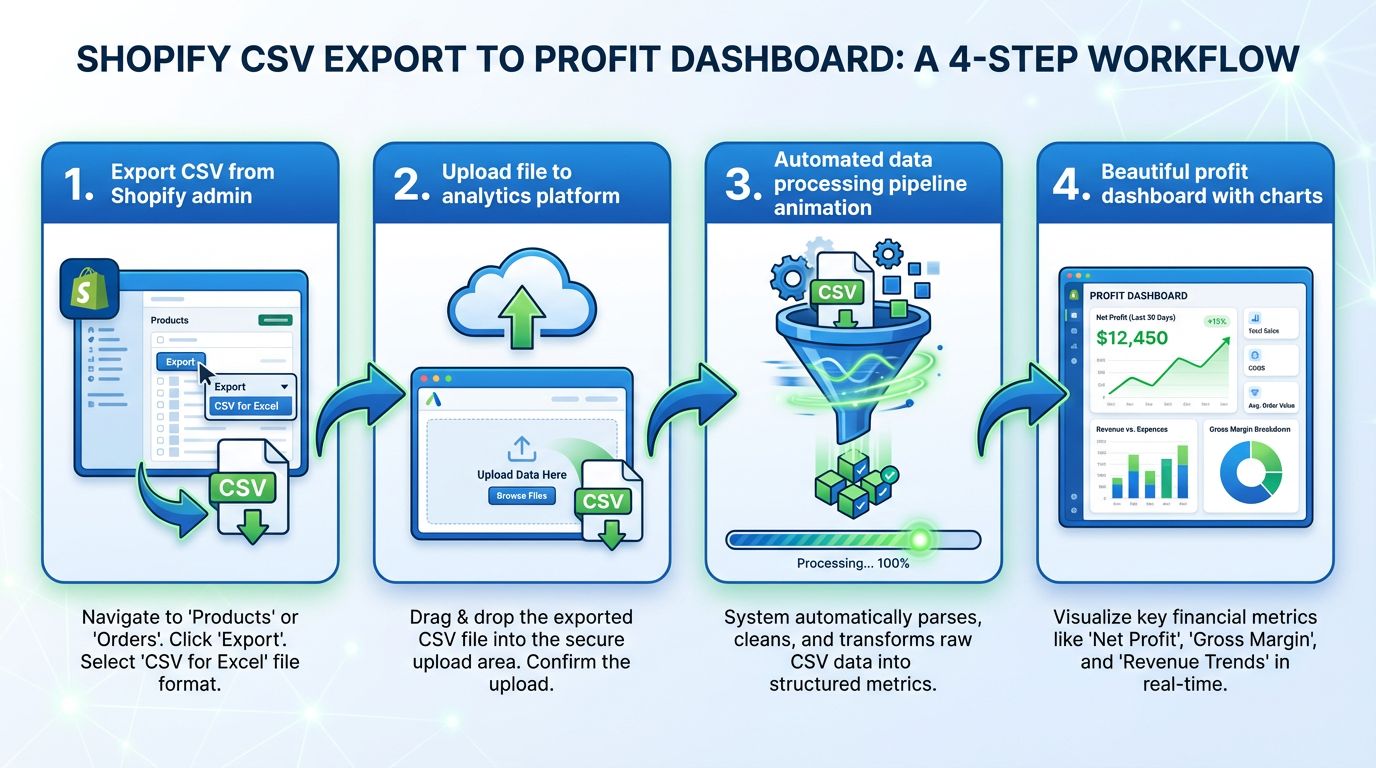
Step 1: Export Your Shopify Data (30 seconds)
- 1Log into your Shopify admin at yourstore.myshopify.com/admin
- 2Navigate to Analytics then Reports
- 3Click on "Sales over time" (this report has the most useful data)
- 4Set your date range (we recommend the last 3 months for meaningful insights)
- 5Click Export and choose CSV format
- 6The file will download to your computer automatically
Pro Tips for Better Data
- Export at least 3 months of data for trend analysis
- Include all sales channels (online, POS, wholesale)
- The "Orders" export also works well if you need order-level detail
- File size limit: up to 50MB (covers most stores with up to 100K orders)
Step 2: Upload to Okiela (10 seconds)
- 1Go to okiela.io/dashboard (sign up first if you have not already)
- 2Click the "Upload CSV" button in the dashboard
- 3Drag and drop your exported file (or click to browse)
- 4Watch the 5D Pipeline process your data in real-time
The 5D Pipeline stages you will see:
- Upload -- File received and validated
- Clean -- Removing duplicates and fixing errors
- Normalize -- Standardizing formats for analysis
- Enrich -- Adding calculated fields (true profit, margins, ROAS)
- Analyze -- Generating insights and recommendations
Average processing time: 15-30 seconds for a typical 3-month export.
Step 3: Read Your Profit Dashboard (15 seconds)
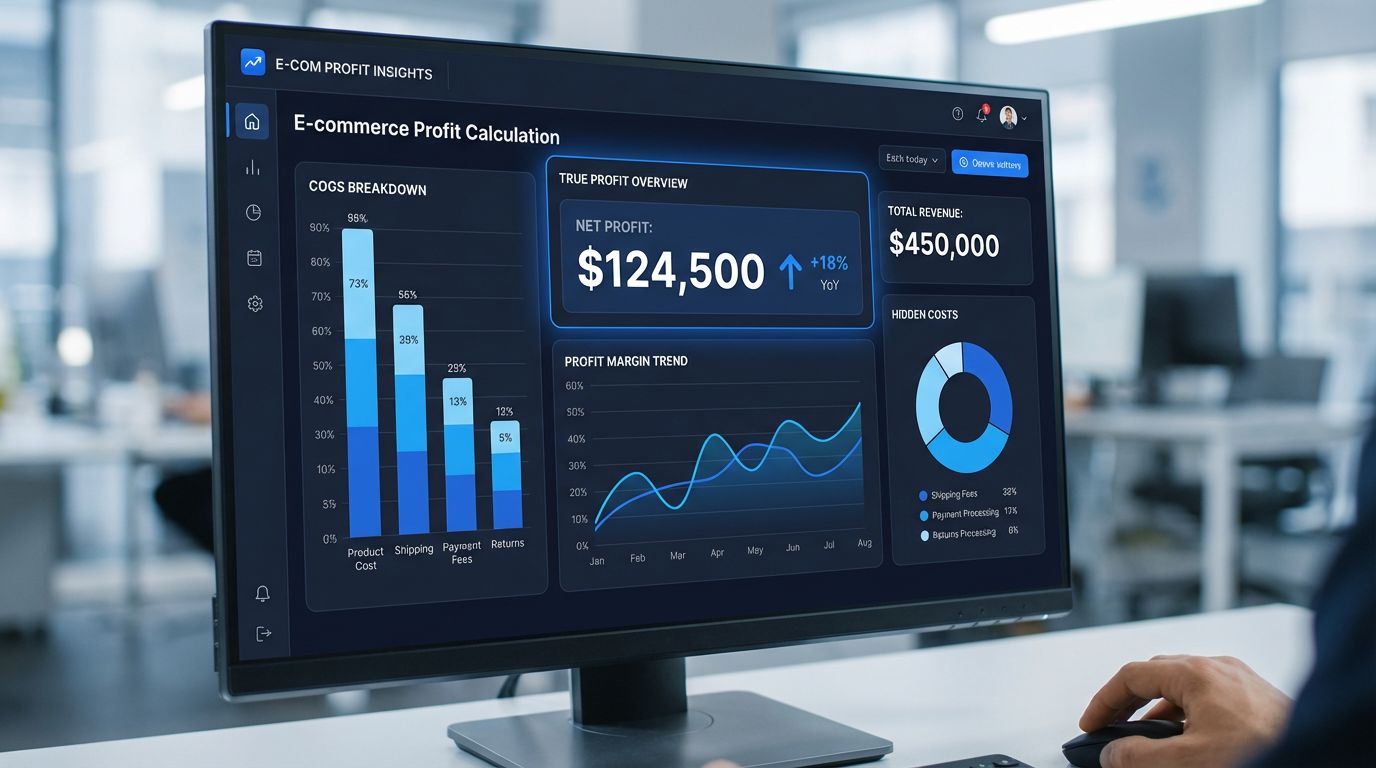
Your dashboard shows four key metrics at a glance:
Total Revenue
Your gross sales for the selected period. This should match what Shopify shows you.
True Profit
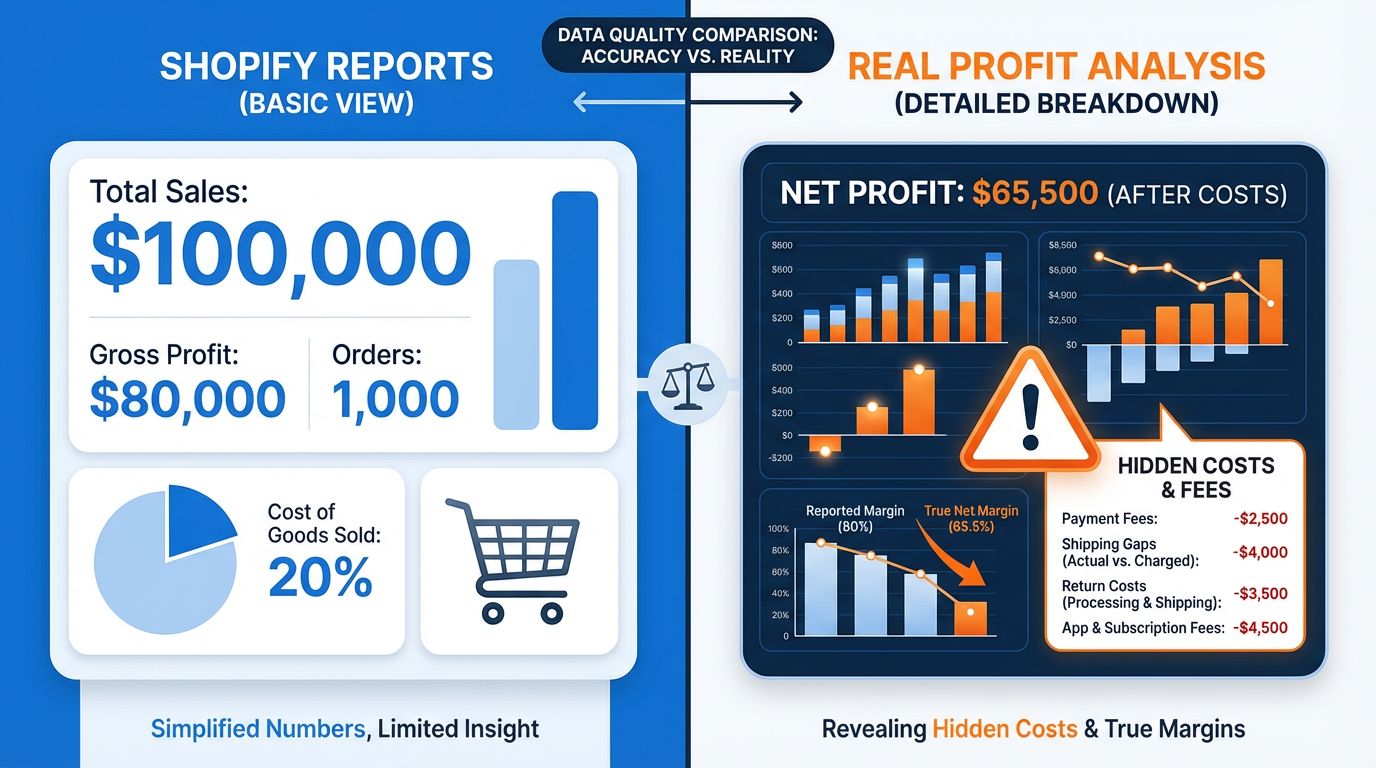
Your actual profit after ALL costs (not just COGS). This is usually 15-25% lower than what you expected.
Average Order Value (AOV)
Revenue divided by number of orders. Useful for benchmarking against your category.
Profit Margin
Your true profit as a percentage of revenue. This is the number that matters most.
SKU Performance Table
Every product in your catalog is analyzed and categorized:
- Hero SKUs -- High margin AND high volume. These are your winners. Protect and promote them.
- Profitable -- Making money but with room to grow. Consider raising prices or increasing ad spend.
- At Risk -- Thin margins that could flip negative. Monitor closely and optimize.
- Losing Money -- Below break-even after all costs. Needs immediate attention: reprice, reduce costs, or discontinue.
Step 4: Ask AI for Actionable Advice
Click the AI chat panel on the right side of your dashboard and try these prompts:
- "Which SKU should I reprice?"
- "Why is [product name] losing money?"
- "What is my most profitable product category?"
- "Compare this month vs last month"
The AI uses your actual uploaded data to give specific, numbers-backed recommendations. Not generic advice -- actionable steps with dollar amounts.
What If I Do Not Use Shopify?
Okiela also works with exports from:
- Shopee (CSV exports from Seller Center)
- TikTok Shop (CSV exports from TikTok Seller Center)
- WooCommerce (CSV exports from WP Admin)
- Any CSV with columns for: date, product name, quantity, revenue, and cost
Lazada integration is coming in Q2 2026.
Troubleshooting Common Issues
"File format not recognized"
Make sure you exported as CSV (not Excel or PDF). The file extension should be .csv.
"No data found"
Check that your date range includes actual sales. An export with zero orders will not produce insights.
"Processing takes too long"
Files over 10MB may take a bit longer. This is normal for stores with high order volumes. The pipeline processes everything in-browser for security.
What is Next?
After your first analysis, we recommend:
- 1Star your top-performing SKUs in the dashboard
- 2Create a repricing plan for any "Losing Money" products
- 3Set a weekly reminder to re-upload fresh data
- 4Ask the AI: "Give me a 3-step action plan to improve profit this month"
Your first analysis is free. The free plan includes 3 analyses per month.
Find the hidden profit leaks draining your store.
Send one order export. Get your 3 biggest profit leaks back within 48 hours.
Request a free Profit Leakage AuditFree, founder-run, no pitch unless you ask. Every number labeled Verified or Estimated. Remove customer PII before upload.
Enjoyed this article?
Get weekly profit optimization tips and Okiela product news delivered to your inbox.
No spam. Unsubscribe anytime.
Nguyen Tuan Dai
Founder & CEO, Okiela
FP&A analyst with 8+ years in financial modeling. Built Okiela on the side to help e-commerce founders see their real profit numbers.